
Using Dictato
Context capture
Give Dictato extra context about what you're doing
Dictato can pull extra context from your screen and clipboard so the transcription understands what you're talking about. All capture toggles live in Settings → Transcription.
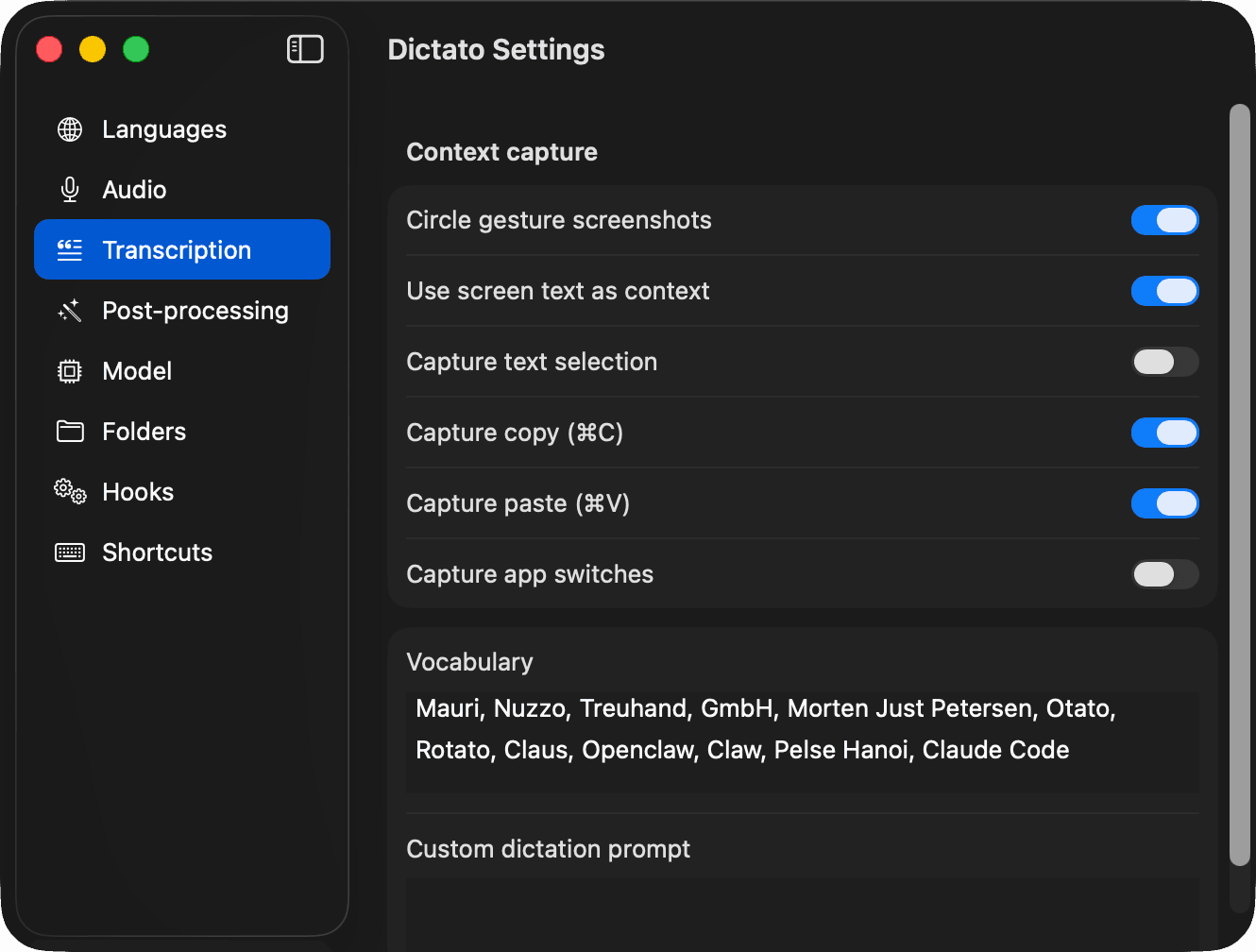
What can be captured
- Use screen text as context - runs OCR on what's visible and feeds it to the transcription or post-processing prompt.
- Capture text selection - grabs whatever is currently highlighted in another app.
- Capture copy (⌘C) - remembers your most recent clipboard copy.
- Capture paste (⌘V) - remembers what you last pasted.
- Capture app switches - notes when you change active app and window during the session.
- Circle gesture screenshots - the circle gesture detector.
Info
Captures are only used to improve your transcription. They stay local unless you've enabled cloud post-processing.
Vocabulary
Add brand names, jargon, or oddly-spelled words in Vocabulary so the transcription engine knows they exist. Comma- or line-separated, both work.
Example: MyProduct, Smith Street, Acme Corp, Jürgen, kubectl
Custom dictation prompt
A short free-form prompt that biases the transcription model itself. Use it to describe your speaking style, your domain, or conventions you want Dictato to respect while it's turning audio into text.
How it differs from the post-processing prompt
The dictation prompt is applied during transcription to guide how the model hears you. It's seen by the on-device speech model (Parakeet or WhisperKit) and helps with things like disambiguating homophones, picking the right spelling for names, and keeping filler words out.
The post-processing prompt runs after transcription on the finished text. It's seen by an LLM (on-device or Claude) and is used for rewriting, punctuation, formatting, and applying style rules you can't express to a speech model.
Rule of thumb: if the rule is about sound (pronunciation, word choice, jargon), put it in the dictation prompt. If it's about text (tone, formatting, rewriting), put it in the post-processing prompt.