
Settings
Post-processing
Clean up transcriptions with on-device or Claude AI
Post-processing runs the raw transcription through an LLM to fix punctuation, fix obvious typos, and apply your own rules. It runs after the speech model has finished, so it's distinct from the custom dictation prompt that biases transcription itself. Enable it in Settings → Post-processing.
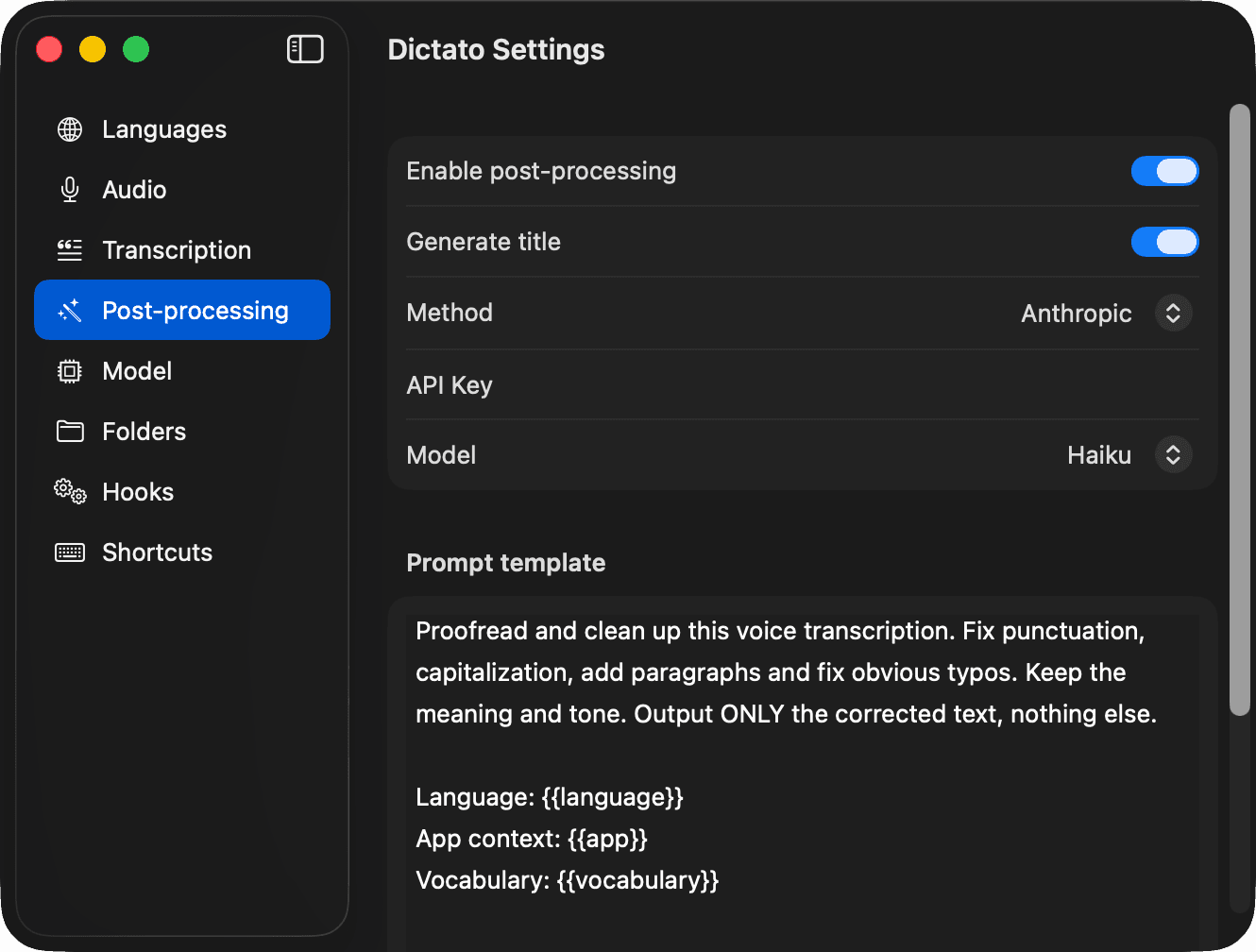
Method
- On Device - runs locally on macOS 26 or later, with no API key required.
- Anthropic - sends the transcription to the Claude API. Paste your API key in the settings pane and choose a model (Haiku, Sonnet, Opus).
Tip
Haiku is plenty for proofreading and usually indistinguishable from the larger models for this task.
Generate title
When enabled, Dictato asks the model to write a short title for each transcription. Titles show up in History so you can find a dictation later without re-reading it.
Prompt template
The prompt you send to the model is fully editable. It supports a few placeholders that Dictato fills in at runtime:
| Placeholder | Filled with |
|---|---|
{{transcription}} | The raw transcription text |
{{vocabulary}} | Your custom vocabulary from Settings → Transcription |
{{language}} | The detected language |
{{app}} | The app you were focused on when dictating |
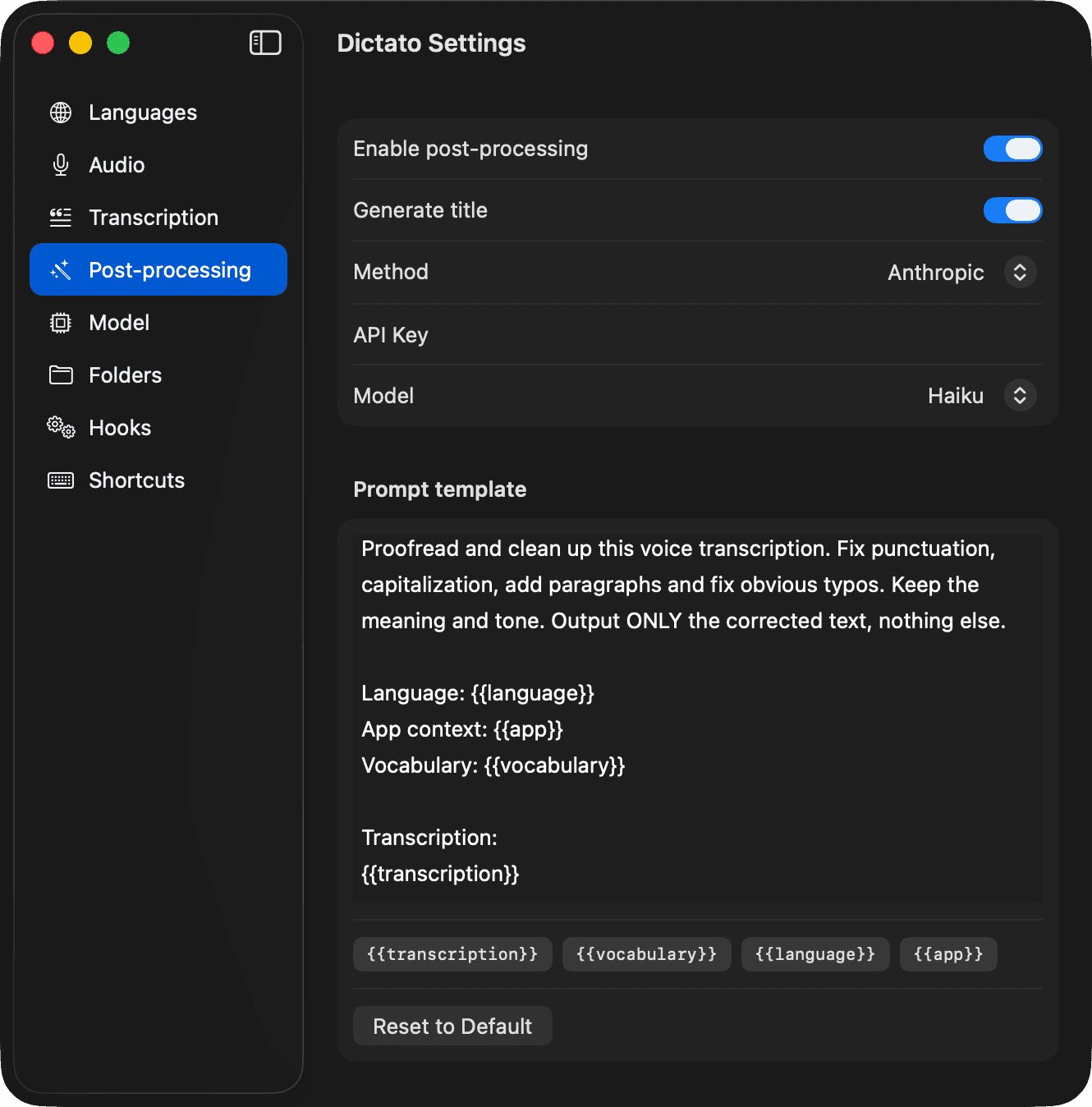
Click Reset to Default to go back to the built-in prompt.
Warning
The default prompt tells the model "do not translate" and "output only the corrected text". If you rewrite the prompt, keep those constraints or you'll get unexpected output pasted into your app.