
Using Dictato
History
Browse, search, and re-use past dictations
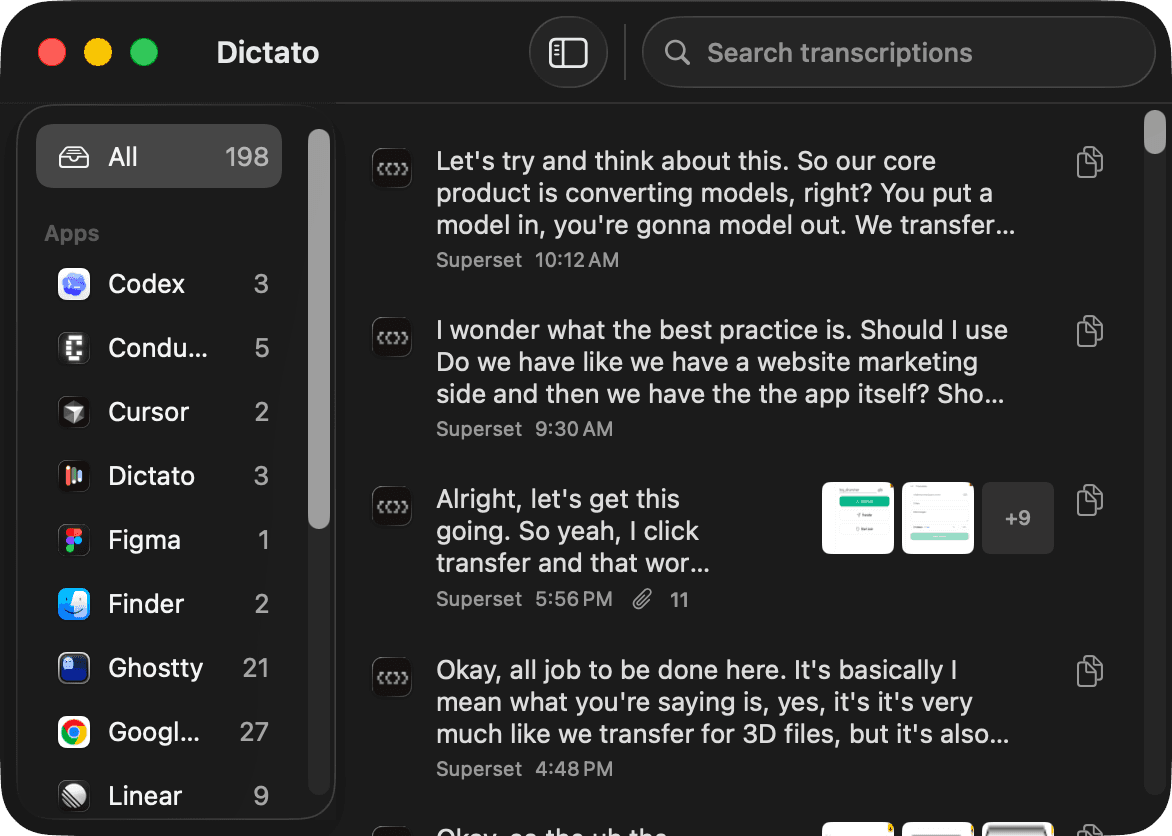
Every dictation is saved locally. Open the main Dictato window to browse them.
What you get
- Title - auto-generated if post-processing title extraction is on.
- Text - the final transcription (raw or post-processed).
- Source app - which app you were dictating into.
- Duration - how long you recorded.
- Attachments - screenshots, drawings, or quoted text attached to the session with tools.
Search
Use the search field at the top to find a dictation by its text. The sidebar also groups entries by the app you were using, so you can click an app to filter.
Re-using a dictation
Each row has a Copy button to put the text back on your clipboard.
Opening a dictation
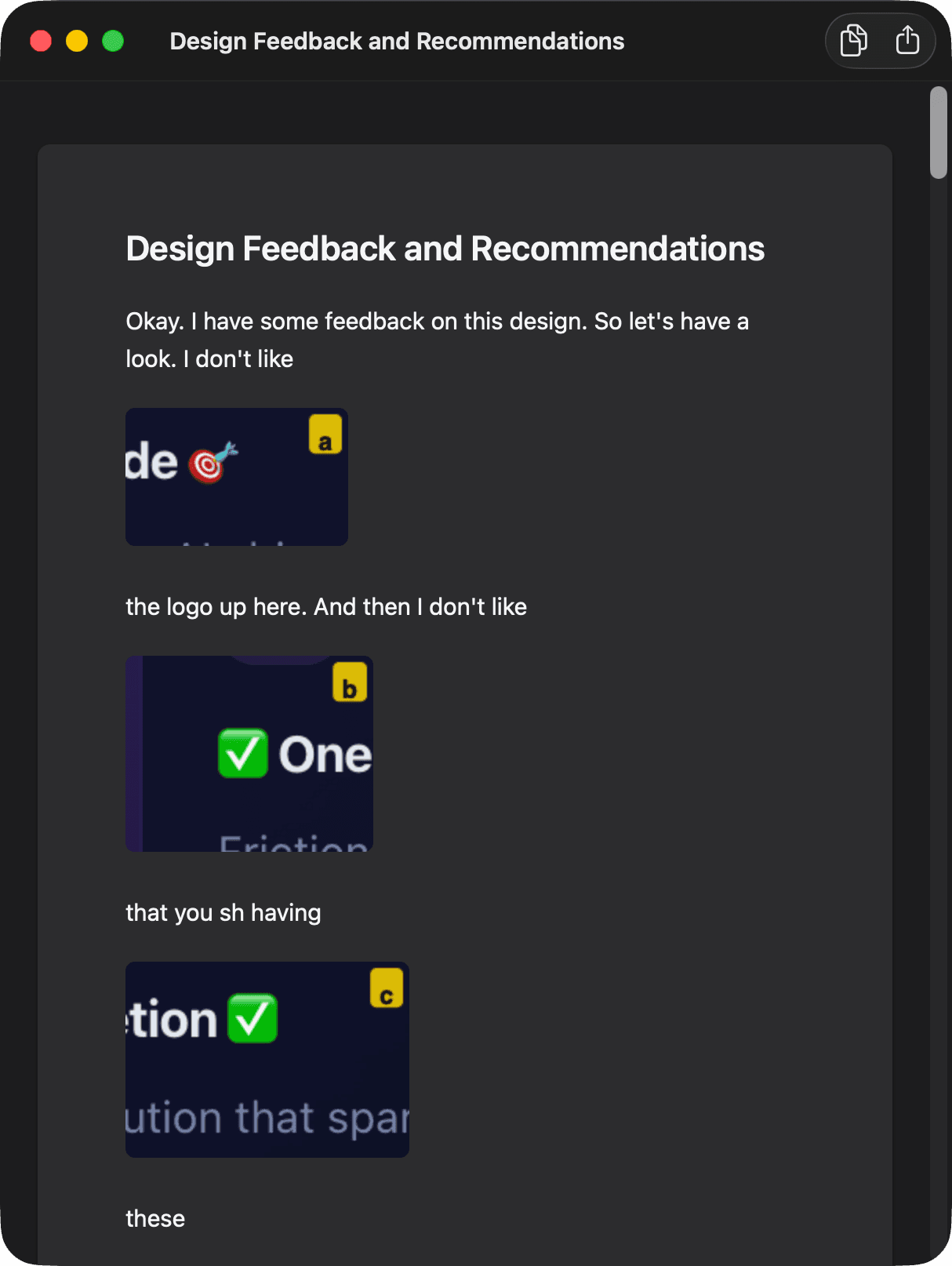
Double-click any row to open the full detail view. Screenshots and drawings from the session appear inline, exactly where you captured them in the flow of the transcription. The toolbar has a Copy and Share button for the whole thing.
Where is it stored?
Transcriptions live in your Markdown folder, one file per dictation. See Folders to change the location, and Audio to turn audio saving on/off.