Using Dictato
Tools during recording
Screenshots, drawings, quoted text, and drag-and-drop attachments
While you're dictating (especially in hands-free lock), you can attach things to the same recording. Everything you attach becomes part of the transcription's context and history.
Region screenshot
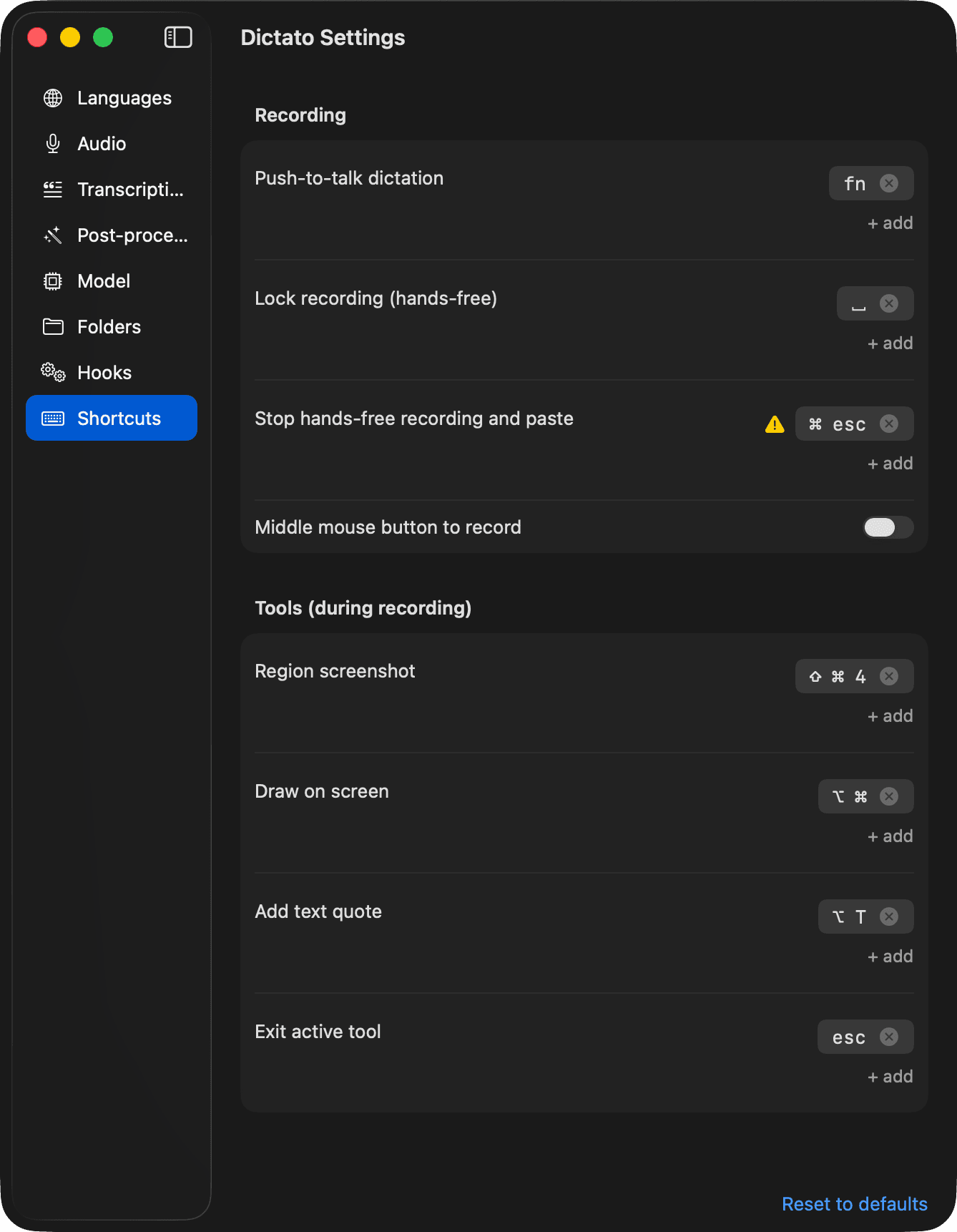
Press ⇧⌘4 to grab a region of the screen. The screenshot animates into the overlay and attaches to the current recording.
Draw on screen
Hold ⌥⌘ to turn the screen into a canvas. Sketch arrows or annotations anywhere, release to capture. The drawing is saved as an image attachment.
Tip
Use drawing to point at exactly what you're talking about, so you can say "this button here" instead of describing where it is.
Circle gesture screenshot
Rough-circle something on screen with your mouse three times and Dictato grabs the region automatically, without any keyboard shortcut.
- First two loops arm the gesture
- Third loop captures the circled area as a screenshot
- Move away from the circled area (or press Escape) to cancel
Toggle in Settings → Transcription → Circle gesture screenshots.
Text quotes
Select text anywhere on your screen, then press ⌥T to attach it as a quoted snippet. Handy when you want to say "rewrite this paragraph" without re-typing or switching windows.
Drag and drop
Drag anything onto the Dictato overlay to attach it:
- Files - added as file attachments
- Images - added as image attachments
- URLs - added as links
- Text - added as a text snippet
- Colors - attached as a color swatch
Exiting a tool
Press Escape to exit the active tool without stopping the recording.
Shortcut reference
| Tool | Shortcut |
|---|---|
| Region screenshot | ⇧⌘4 |
| Draw on screen | Hold ⌥⌘ |
| Text quote | ⌥T |
| Circle gesture | Draw 3 circles |
| Exit tool | Escape |